How to How To Disable Lock Screen & Lock Screen Image
While the Lock Screen in previous versions of Windows adds an extra layer of security to Windows logon and allows you to temporarily lock your system, the Windows 8 Lock Screen offers some extra features; other than the ability to lock your computer with a password, it also lets you view the notifications from different apps such as People, Email, Date & Time, Battery Status etc. If you are using Windows on a tablet, entering the password in order to gain access to the computer every time you login can be a bit annoying. The default settings provided by Windows 8 lets you tweak the elements of the Lock Screen, but does not have an option to completely disable it. However using the Local Group Policy Editor, you can permanently disable the Lock Screen, which in turns gives you direct access to the Windows Logon screen. The Lock Screen policy setting dialog also enables system administrators to prevent standard and guest users from changing the Lock Screen image.
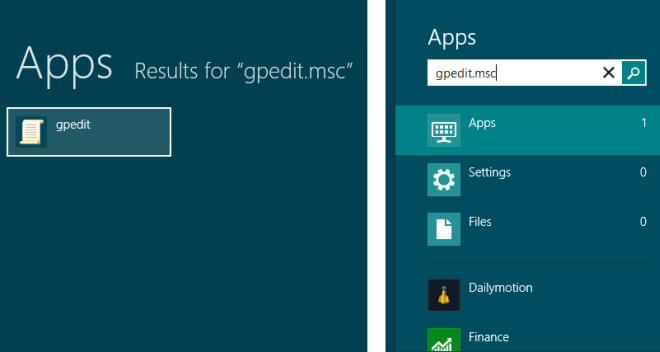
Changing system settings from Local Group Policy Editor requires administrative privileges. So, log in to Windows as administrator, and on Start Screen, type gpedit.msc. Hit Enter to open Local Group Policy Editor.
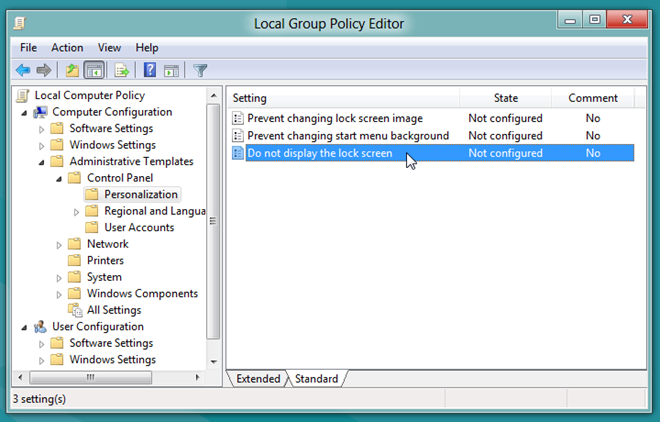
Now, expand Administrative Templates settings from Computer Configuration, and then navigate toControl Panel –> Personalization. In main window, you will find Do not display the lock screen policy.
Simply, double-click this policy and tick Enabled checkbox. This will permanently disable Lock Screen. When disabled, users will see the Logon screen when they log off or lock Windows. Similarly, you will be taken to Logon screen, instead of Lock Screen, at startup.
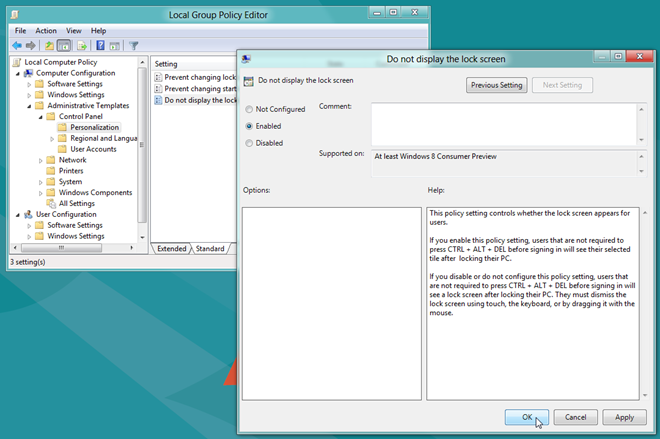
It’s worth mentioning here that if it fails to disable the Lock Screen, then you may need to reboot your PC to implement the Lock Screen policy. In order to enable the Lock Screen for all users, all you need is to open the Local Group Policy Editor from an admin account, navigate to aforementioned setting, and enable Not Configured option.
TKB:1017